Welcome to the Sontiq Online PC Protection Tools
The Sontiq Online PC Protection Tools focuses on neutralizing the three greatest threats to internet users – key logging spyware, phishing and ransomware attacks. These three attack methods are the cause of almost 95% of all data stolen from PC users.
By protecting against key logging and screen captures every time you enter data online, and by preventing phishing sites from loading in your browser, the Sontiq Online Data Protection Tools provides safe, secure browsing.
The Online PC Protection Tools is not designed to replace anti-virus, anti-spyware or other desktop internet security suites – but to supplement them by providing focused protection for all data entered into websites. Independent tests have verified that the unique and proactive nature of Sontiq solutions means that it protects against brand new threats better than any other solution – counter-acting the weak points of conventional desktop anti-virus security software.
By installing the Sontiq Online PC Protection Tools you are deploying the most comprehensive, real-time data protection available for users of the web.
The Benefits of the Online PC Protection Tools?
The Online PC Protection Tools is designed to provide real-time protection against electronic data and identity theft, allowing you to browse and use the Internet more safely. This solution is able to prevent illegal and unwanted data capture without needing to identify malware itself. Thus, the software provides a complementary, yet more proactive, level of protection than that offered by conventional desktop security solutions.
The Online PC Protection Tools:
- Protects every keystroke you type (passwords, credit cards, identity information)
- Protects against malware that takes pictures of your data and steals it
- Protects you from being lured to a fake (phishing) site that steals your data
- Shows every keystroke you type being protected
- Protects against ransomware that encrypts your data
To see the protection the software has been providing, view the Activity Report in the software, which can be accessed by clicking on the Sontiq logo to access the user interface and select the Protect lab to view your report.
Phish-Finder:
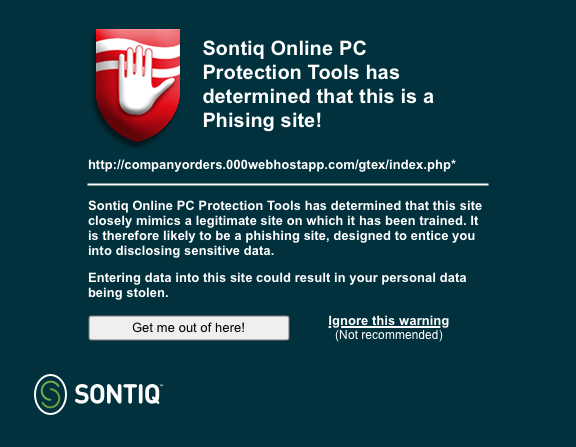
The software prevents identity and data theft by identifying whenever a user navigates to a scam phishing site. It prevents the site from loading, thus safeguarding you from entering confidential data into these web pages. Your software is trained to recognize popular phishing targets. Whenever you attempt to navigate to a phishing page, you are warned through the following message in your browser:
i-Scramble:
Key loggers are forms of Spyware or Trojans that monitor your computer activities and covertly record the keystrokes entered by a user. Criminals use key loggers to steal people’s identity, usernames, passwords, credit card numbers, banking details, SSN, etc. The Sontiq Online PC Protection Tools protects the data that you enter online from being harvested by key loggers. The anti-key logging features of this software work on multiple levels of your operating system and are far more powerful in terms of protecting data than those measures employed by conventional anti-virus solutions.
Many key logging Trojans also have a screen capture facility enabling data to be stolen from online keypads, drop down menus, etc. The Sontiq Online PC Protection Tools prevents Trojans from stealing sensitive information by preventing them from taking pictures of your screen. Once again, this feature ensures that users are far safer browsing the net than if they merely have conventional anti-virus software installed.
Anti-Ransomware
Ransomware is one of the most crippling cyber threats today. Once ransomware has infiltrated a computer, it can encrypt all the data files – files such as photographs, documents, emails, spreadsheets, etc. This can be extremely disruptive and damaging – imagine having all your files encrypted and being unable to access them! After encrypting the files, the ransomware then presents the ransom demand – the user is asked to pay money in return for the decryption key. As you would be dealing with criminals, paying the ransom demand does not guarantee that the files will be decrypted, or that you would be safe from further encryption and payment demands in the future.
CryptoBlock protects against this scenario. Once installed, CryptoBlock works silently in the background, monitoring all attempts at encryption activity. Any malicious encryption activity on the computer is stopped before it can cause any damage.
Criminal gangs have successfully made fortunes from ransomware. Due to its ease of implementation and speed of converting infiltration into cash, it remains the weapon of choice for many criminal enterprises. Ransomware is not going away any time soon. You can have peace of mind knowing that CryptoBlock is on duty constantly watching for malicious ransomware activity.
What You Will See:
i-Scramble Display
The first thing you will notice after the software has been installed and the PC has been restarted, is a fake character display in the browser window title bar. This display only appears when you are working in your browser.
If you are running the Online PC Protection Tools, you will see the i-Scramble located in the top right of your browser, as shown below:

One of the main anti-key logging measures of the Sontiq Online PC Protection Tools is that anything you enter into the web fields in the browser is automatically scrambled – it is replaced with fake random characters. The green display shows these scrambled characters as you enter data. This is what any key logger in your computer would pick up – not your real key entries. When you see the scrambler working, you know your key entries are being protected.
Anti-Ransomware Display
CryptoBlock will notify you of any malicious encryption that has been blocked, by displaying a notification which looks like this:
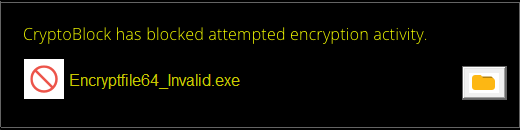
At any time, by clicking “Protect”, you can view the history of CryptoBlock actions, as well as manually change any decisions.
About Window
The About screen displays information relating to your product or this page. Here you will find information relating to how your product works and how to obtain support should you need to. You can access the About screen by right clicking the shield icon in the bottom right of your screen.
Options Window
The Options window is obtained by clicking on the Option button at the top of the About window. The Options menu provides you with details regarding the settings of the product such as if the Screen Capture prevention is enabled and if the i-Scrambler window is to be displayed or not. You can also find version numbers relating to your product. Should you need to open a support ticket or contact us for any reason you are likely to be asked for this information.
Shield Menu
The Shield menu is located on your Windows system tray at the bottom right of your screen. It is your short-cut into the following sections:
> About
> Option
> Protect
> Exit
Choosing Exit shuts down some of the software functionality.
Help
If you need assistance, visit our support portal. You can navigate to this page by clicking here: FAQ
Supported Platforms
If you need assistance, visit our support portal. You can navigate to this page by clicking here: FAQ