Sontiq Online PC Protection Tools Frequently Asked Questions
What is included in the Online PC Protection Tools?
The Online PC Protection Tools is data and identity theft prevention software that protects everything you type when you are online. It comprises of anti-key logging software (EntryProtect), anti-phishing software (PhishLock), and anti-ransomware software (CryptoBlock). It adds an extra, real-time layer of protection to whatever other anti-virus, anti-spyware or firewall software you have.
This solution is typically downloaded to a user’s PC or laptop. More information can be gained by reading the software overview which can be accessed by clicking on the shield at the bottom right of your screen.
What are the minimal requirements to run the Online PC Protection Tools?
Either Windows 8.1 or Windows 10, at least 2GB RAM, a 1GHz processor or higher. For browsers, Sontiq supports the latest versions of Internet Explorer, Edge, Chrome and Firefox.
What Internet browsers are supported?
If you install the personal Online PC Protection Tools on your PC/laptop, the latest versions of Internet Explorer, Edge, Chrome and Firefox are supported.
How do I know if I am protected?
If you are running the Online PC Protection Tools you will see the i-Scrambler in the top right of your browser, as shown below:

Each time you type you will notice that the keystroke you type into a web page field is replaced by a fake random character in the Scrambler. It is these fake keystrokes – not what you type – that would be picked up by any hackers trying to monitor your keystrokes.
You may also notice the shield in the system tray at the bottom right of your screen.
What is the software protecting me from?
The Online PC Protection Tools protects every keystroke you make from spyware that may be monitoring your key entries, mouse clicks and/or taking pictures of the output on your screen. Sontiq software prevents all such threats.
It also protects you from inadvertently accessing scam websites and having personal data stolen that way. It also warns you when you are accessing a site from which personal data entered has been known to fall into the public domain.
Unfortunately, Spyware and Phishing attacks have become so common and sophisticated that all users require real-time data protection software in addition to conventional anti-virus and firewall software.
For more information click on the shield icon at the bottom right of your computer.
Will the software work with my anti-virus or any other security software?
Yes. The Online PC Protection Tools is designed to work alongside all other security suites and software providing you with an extra, real-time layer of protection against data and identity theft.
Do I need anti-virus software if I am running the Online PC Protection Tools?
While you do not need anti-virus to protect against sensitive data being stolen when you use the internet, anti-virus protects your PC from other threats in other areas of your system and has the ability to remove viruses. For this reason, we recommend all users install anti-virus and keep it up to date.
Can I use the software on my Apple Mac?
No, it is only supported on Windows operating systems. If you have a Windows partition on your Mac then you can use the software but it is not supported under OSX operating systems.
How do I know what version of the software I am running?
Go to the Options tab by clicking on the shield at the bottom right of your screen and you will see the version number at the bottom of the window.
How do I get updates for the software?
The software checks with the Sontiq server each day whether there is a new update for the software. If so, it downloads that update automatically in the background while you use your PC, just like anti-virus software.
Can I install Online PC Protection Tools on more than one PC?
Your license for the Online Data Protection Suite allows you to install the software on up to five different computers.
Can I re-install the Online PC Protection Tools after using up my available installations?
You can re-install the Online Data Protection Suite on the same computer as many times as necessary. However, if you have already used all your allocated installs and need to install it on one more machine, you will not be able to complete the installation.
How do I uninstall the Online PC Protection Tools Software?
Go to the Start Menu on your computer, select Settings, open Apps, select Uninstall a Program, highlight the Sontiq Online PC Protection Tools and then click Uninstall and follow the prompts.
What is a Phishing Site?
A Phishing site is a fake web site that pretends to be a legitimate site to try and trick you into entering personal details, usually relating to bank account details, usernames, passwords, credit card details, etc.
What happens if I go to a Phishing Site?
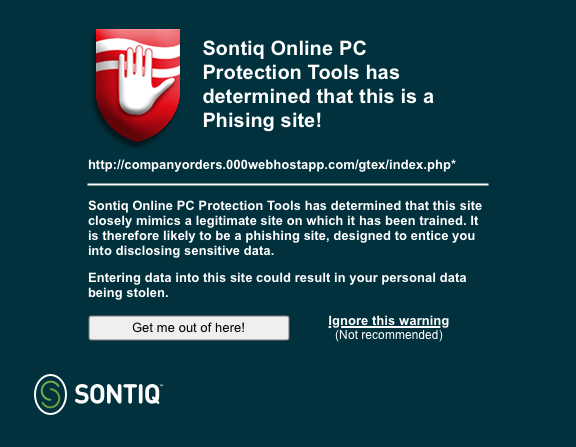
If you navigate to a Phishing site your browser will automatically display a warning page to prevent you entering your personal details. If you choose to you can ignore the warning and proceed to the site.
Which web sites are protected against Phishing?
There are a large number of sites (over 800) that you are automatically protected against, too many to list here, which cover all the main categories of the web such as; Banking & Finance, Payment Processing, Auction sites, Utilities, Entertainment, Social Networking, etc. The list of protected sites is growing all the time and your software will automatically update itself with these new sites.
Where do I get troubleshooting advice?
Go to the Knowledgebase section of this FAQ for common technical questions and answers.
I have a problem with the software, can I get help?
Yes, if you are unable to answer your question from this FAQ or the Knowledgebase then you can request help by emailing member services at [email protected].
Knowledgebase
Why can’t I see my Scrambler?
The Scrambler is a unique feature of Sontiq products and is located within your Internet browser. Its purpose is to provide a visual representation of the key-for-key replacement process.
If you are unable to see your Scrambler then you will need to check the following:
- Have you rebooted your computer since you installed Sontiq Online PC Protection Tools?
- Is you Internet browser in focus? I.E., is your browser the active application?
- The Scrambler should be located in the top right-hand corner of your Internet browser.
- If not, it will likely re-appear when you next restart your browser, or if that fails when you next restart your computer.
I want to run a web conference and users cannot see my browser screen
To address this, you can temporarily turn off the anti-screen capture function of the software. Access this from the Option tab which can be found after clicking on the shield on the bottom right of your screen.
My real characters are showing in the scrambler
This is likely to occur because you are running another program that is also attempting to access the characters, such as Keyscrambler or the report function from Trusteer’s Rapport program. We recommend you disable or uninstall the other program, as Sontiq software is providing a stronger level of protection.
Then close down your browser and restart it. If that fails, restart your PC.
When I type different characters are showing up than I type
Just restart your browser, or if that fails, restart your PC.
Another icon is overlapping with the Sontiq Scrambler
Some programs put an icon in the same part of the browser as Sontiq. Often you have the ability to move such icons. Contact the software owner of these programs to see if they can be moved.